Whether you are upgrading to a new Android phone or just want the peace of mind that your contacts are safe and sound, Android makes it easy to import and export contacts on your mobile device.
Exporting contacts supports both SIM card and local storage methods to ensure that you always have access to your important contact information. Exporting to your SIM card makes importing to another simple. Better yet, exporting to local storage uses the vCard format. This makes using imported or exported contacts simple across a variety of platforms, devices and applications.
Either way, importing or exporting contacts on your mobile device takes just a few seconds. Lets get started!
Instructions
Locate and launch the “Contacts App” in your App Drawer.

Open the menu by using the on-screen “Menu” button or the button at the bottom of your device.
Select “Manage Contacts” from the menu listing.
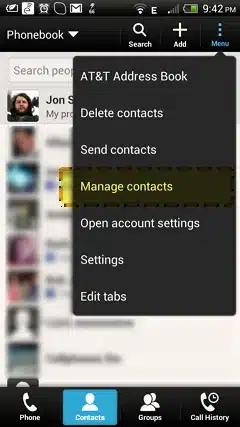
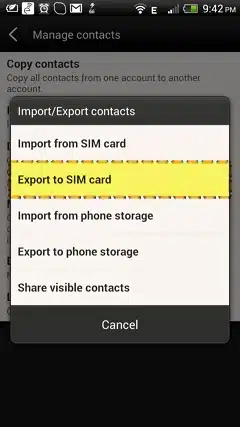
Choose “Import/Export Contacts”.
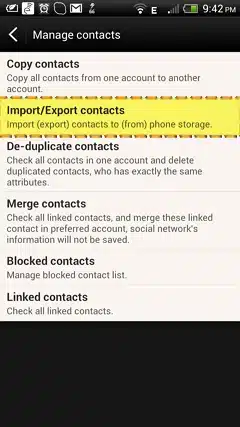
Select “Import from SIM Card” or “Import from Phone Storage” depending on your device.
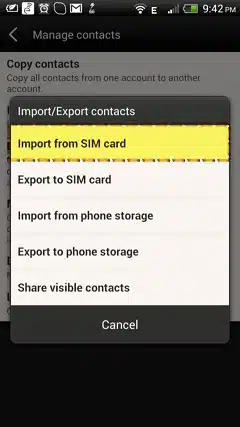
Select “Export to SIM Card” or “Export to Phone Storage” depending on your device.
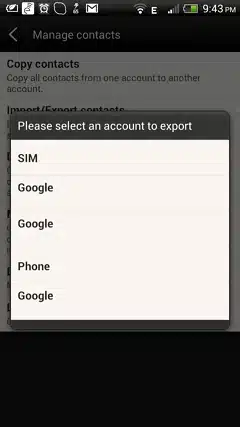
Tap the account to which you wish to import or export contacts.
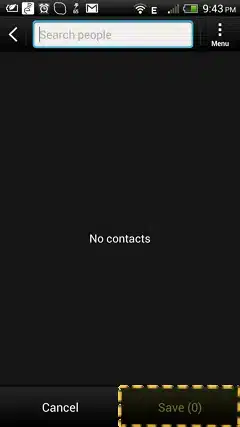
Tap each contact that you would like to import / export.
Tap “Save” and wait for the progress bar to finish.
Conclusion
Importing and exporting contacts on an Android device is simple. This makes it easy to backup your contacts, transfer them to a new device or use them with other apps and services.
With just a few taps, you can be on your way to keeping your contacts safe or restoring your phone’s contact listings.
Tips & Warnings
- These steps are for devices running Android 4.1 Jelly Bean. However, they should be similar on any Android device.
- Once the Import / Export process has started, it cannot be cancelled. Be sure to check your selections carefully before selecting “Save”.
- Contacts exported to storage are saved in the vCard format. This allows you to save the contacts to your computer, import them into many popular email applications or attach them to emails or SMS messages to share with friends.