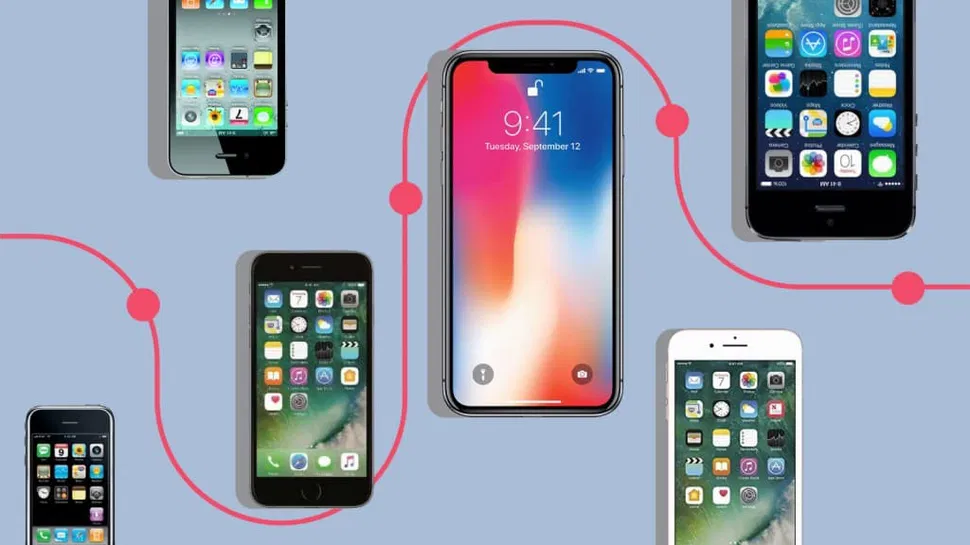
“Which iPhone do I have?”
We get this question a lot…
That’s not a surprise considering that since the release of the original iPhone in 2007, Apple has added 24 more models to their lineup.
Related Guide: The History of the Apple iPhone
So, how do you find out which iPhone you have?
Here’s four different ways you can tell.
Editor’s Note: This post has been updated for 2022
Method #1: Check the Back of Your iPhone
Until the release of the iPhone 8, Apple printed the model number of every iPhone on its rear cover. The print is tiny, so you might have to break out a magnifier, but it should be near the bottom center of the rear panel.
You should see lines that mention a model number as well as the IMEI and serial number of your iPhone.
The 5-digit code starting with an A should be your model number.
If those tiny lines have worn off — or you have an iPhone 8 or newer — don’t worry.
There are a few other options to check.
Method #2: Check the SIM Slot on Your iPhone
With the release of the iPhone 8, Apple changed where it printed the model number on all iPhones.
Instead of checking the rear of the phone, you’ll need to peek inside the SIM slot.
The slot should be located on the side of the phone. Just place your SIM removal tool into the tiny hole and push gently. The SIM tray should pop out.
If you’ve misplaced your SIM removal tool, you can use a paperclip. Just be sure to be gentle and don’t use anything sharp — like a needle or pushpin.
With the tray out, shine a light into the SIM slot. The model number should be printed on the side closest to the display.
Method #3: Check Your iPhone Settings
Checking the model number in your software is easy as well.
Just tap the Settings app and choose General then About.
You should find a model listing toward the top of the page of information displayed.
The model number displayed by default likely starts with an M. This is actually the part number and is harder to cross-reference.
But tapping the model number will switch it the model number. If it switches to a 5-digit code starting with an A, you’re good to go.
Method #4: Connect Your iPhone to iTunes
If all else fails, you can hunt down your USB cable and connect your iPhone to any computer running iTunes.
Once you boot up iTunes, you should see the iPhone’s model number listed on the list of connected devices. If not, clicking your iPhone in the iTunes menu should display the serial number.
You can use the serial number to find your model by using Apple’s Check Coverage page.
Simply enter your serial number and the captcha at the bottom of the page and click continue.
The next page should show your iPhone model in the center of the page.
A Reference List of iPhone Models
Want to know which model number matches the “named” iPhone models (iPhone 5C, iPhone XS, iPhone 8 Plus, etc)?
Here are the model numbers of every iPhone since release…
| Release Date | Model Name | Model Numbers |
| June 2009, 2007 | iPhone | A1203 |
| June 11, 2008 | iPhone 3G | A1241 A1324 (China Only) |
| June 19, 2009 | iPhone 3GS | A1303 A1325 (China Only) |
| June 21, 2010 | iPhone 4 | A1332 A1349 |
| October 14, 2011 | iPhone 4S | A1387 A1431 (China Only) |
| September 21, 2012 | iPhone 5 | A1428 A1429 A1442 (China Only) |
| September 20, 2013 | iPhone 5C | A1456 A1532 A1507 A1516 (China Only) A1529 |
| September 20, 2013 | iPhone 5S | A1453 A1533 A1457 A1518 (China Only) A1528 (China Only) A1530 |
| September 19, 2014 | iPhone 6 | A1549 A1586 A1589 (China Only) |
| September 19, 2014 | iPhone 6 Plus | A1522 A1524 A1593 (China Only) |
| September 25, 2015 | iPhone 6S | A1633 A1688 A1691 (China Only) A1700 (China Only) |
| September 25, 2015 | iPhone 6S Plus | A1634 A1687 A1690 (China Only) A1699 (China Only) |
| March 31, 2016 | iPhone SE | A1662 A1723 A1724 (China Only) |
| September 16, 2016 | iPhone 7 | A1660 A1778 A1779 (Japan Only) A1780 |
| September 16, 2016 | iPhone 7 Plus | A1661 A1784 A1785 (Japan Only) A1786 |
| September 22, 2017 | iPhone 8 | A1863 A1905 A1906 (Japan Only) A1907 |
| September 22, 2017 | iPhone 8 Plus | A1864 A1897 A1898 (Japan Only) A1899 |
| November 3, 2017 | iPhone X | A1865 A1901 A1902 (Japan Only) |
| September 21, 2018 | iPhone XS | A1920 A2097 A2098 (Japan Only) A2100 (China Only) |
| September 21, 2018 | iPhone XS Max | A1921 A2101 A2012 (Japan Only) A2104 (China Only) |
| October 26, 2018 | iPhone XR | A1984 A2105 A2106 (Japan Only) A2108 (China Only) |
| September 20, 2019 | iPhone 11 | A2111 A2221 A2223 (China Only) |
| September 20, 2019 | iPhone 11 Pro | A2160 A2215 A2217 (China Only) |
| September 20, 2019 | iPhone 11 Pro Max | A2161 A2220 A2218 (China Only) |
| April 24, 2020 | iPhone SE (2020) | A2275 A2296 A2298 (China Only) |
| October 16, 2020 | iPhone 12 mini | A2176 (US) A2398 (CA & Japan) A2399 (Other) A2400 (China) |
| October 16, 2020 | iPhone 12 | A2172 (US) A2402 (CA & Japan) A2403 (Other) A2404 (China mainland, Hong Kong, Macao) |
| October 16, 2020 | iPhone 12 Pro | A2314 (US) A2406 (CA & Japan) A2407 (Other) A2408 (China mainland, Hong Kong, Macao) |
| October 16, 2020 | iPhone 12 Pro Max | A2342 (US) A2410 (CA & Japan) A2411 (Other) A2412 (China mainland, Hong Kong, Macao) |
Summary
Apple offers four ways to find your iPhone’s model number depending on your model:
- On the back of the tablet
- In the SIM tray
- In the Settings app
- Using iTunes
Knowing your model number can help you to match accessories to your phone, compare it to other models if you’re upgrading, find out more about the features included with your device, and find parts for repairing your phone.
If you’re buying a used phone or considering selling your phone, knowing how to find the model number on your iPhone can help provide you with general idea of its value and ensure sellers are being honest with you.
For more information about each iPhone model, check out Apple’s Identify your iPhone model page.
Disclosure: You should know that in some cases, we may receive a referral fee (at no additional cost to you) for products purchased through the links on our site. These links help support our work but they do not influence our content. Our editorial recommendations are always genuine and we try to feature only the best products and services. Why trust us?