
In addition to hiding certain text messages, we all have those private shots and embarrassing photos we’d also like to hide away.
The thing is that we often don’t want to delete those photos. They provide personal entertainment and great or not so great memories of some interesting times.
So what can we do with photos we don’t want to be seen and yet don’t want to lose?
The answer is simple…
We hide them.
You can do this with built-in options available on most iOS and Android phones. Or, if you’d prefer, there are specialized apps for hiding photos as well. Both methods are covered below so you can choose the method that’s best for you.
How to Hide Photos on Your iPhone (or iPad)
If you have an iPhone running iOS 11 or newer, you have two options for hiding photos that are built into your phone.
The first is easy, but not exactly secure.
- Launch the Photos app on your iPhone.
- Tap the photo you want to hide. If you want to hide more than one image, long press and then choose select until you have them all selected.
- Tap the Share icon in the lower-left corner of your screen.
- Tap Hide, then Hide Photo.
The downside to this method is that it doesn’t password protect your photos.
To view your hidden photos, all you have to do is tap the Albums tab in your Photos app and scroll down and tap the Hidden folder.
This won’t fool someone who knows where to find your hidden images.
The second, more secure method requires a bit more work. But once you’re done with the setup process, hiding photos is simple.
First, you’ll want to enable password protection for your Notes app.
- Tap Settings > Notes > Password.
- Enter a strong password and enable TouchID for optimal security.
- Tap Done.
Next — unless you want your private photos floating around the cloud — you must enable the “On My iPhone” notes account.
- Tap Settings, then Notes.
- Then toggle the switch next to “On My iPhone” Account to enable it.
Now you’re ready to hide your photos.
- Launch the Photos app on your iPhone.
- Tap the photo you want to hide. If you want to hide more than one image, long press and then choose select until you have them all selected.
- Tap the Share icon in the lower-left corner of your screen.
- Tap Add to Notes.
- Launch your Notes app and locate the photo you added.
- Move the photo to your On My iPhone account by opening it, tapping Edit, and choosing Move To.
- Once the note is moved, tap Share > Lock.
Now you can delete the photo from your Photos app while keeping a copy locked away in Notes.
Just remember to clear your Recently Deleted folder within Photos to be sure the photo is really gone.
Prefer a video guide? This YouTube clip covers everything you need to know.
How to Hide Photos on Android Devices
Because Android phones ship with a variety of pre-installed apps, hiding photos is a bit more difficult.
Samsung and LG both offer ways to hide photos. But for most phones, you must use a file manager. Fortunately, this comes factory-installed on most Android phones.
If your phone doesn’t include one, we highly recommend using ES File Explorer. It comes with ads but if the ads annoy you, you can opt for the Pro version.
Once you have a file manager, hiding photos is simple.
- Launch your file manager app
- Create a new folder. As long as the name starts with an “.”, it won’t appear in the gallery or other media apps.
- Copy your photos from your DCIM or image folders to your new folder.
Just keep in mind that if you name the folder something like “.secretpictures” that might raise suspicion. Something that seems like it belongs there — like “.apps”, “.system”, or even “.temp” — is less likely to draw attention if someone is being nosey.
If you prefer a video guide, this YouTube clip walks you through the steps.
4 Helpful Apps to Hide Photos
If you don’t want to go through the hassle of hiding your pictures manually, there are dedicated apps to help you keep personal pictures away from prying eyes.
The following apps are great choices for anyone who wants to to hide photos on their smartphone.
1. Keepsafe Photo Vault

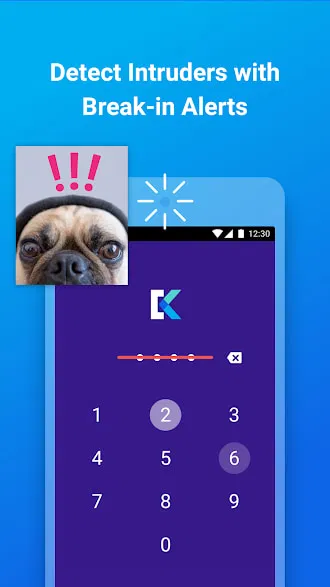
Keepsafe is one of the highest rated apps for hiding pictures and videos on iTunes and Google Play. Reviews indicate that it’s reliable and lives up to its marketing hype.
The free version allows you to use a PIN, pattern, or fingerprint to lock down your files and provides a small amount of cloud storage to sync your secret photos between multiple devices.
Upgrading to the paid version allows you to set different PINs or patterns for each album, enable the break-in alert to show you who is trying to access your photos when you’re not looking, and offers a fake pin which loads an empty vault if someone forces you to unlock your albums.
While the premium app requires an annual subscription, the price is likely worth the peace of mind if you’re hiding anything particularly sensitive.
Price: Free or $25.00 per year
Get it: for Android | for iPhone
2. Private Photo Vault
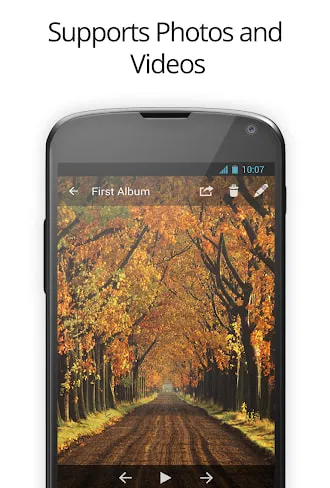
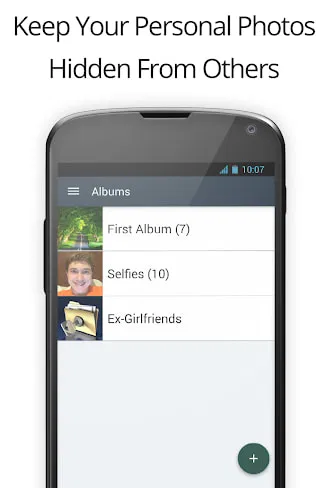
Private Photo Vault combines a comprehensive set of photo hiding features with a built-in private web browser to help you add photos to your storage from other sources.
Reviews are generally positive — though some users reported a few bugs in a recent update. However, the developers appear responsive and many of the most negative reviews seem to result from people switching or resetting phones, not updating the app itself.
The app also offers video storage — something you won’t find with every photo hiding app. If you’re worried about someone forcing you to show them your files, there’s a decoy password option. And if they enter the wrong password enough times, the app will take a picture and note the location using your GPS to let you know who tried to access your files.
Price: Free with in-app purchases
Get it: for Android | for iPhone
3. Best Secret Folder
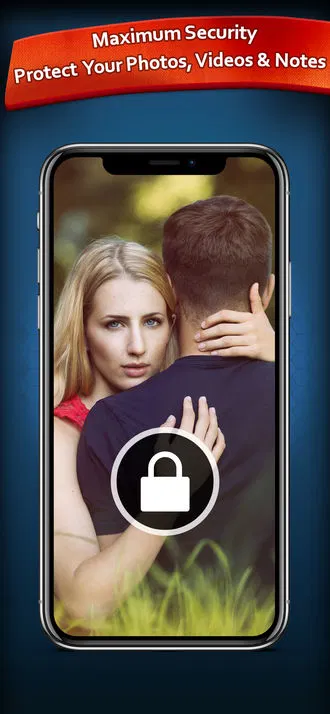

Best Secret Folder has a 4.8 rating on the iTunes App Store. It offers a range of features designed to help you not just keep your photos hidden but to organize them as well.
While other apps allow you to set a decoy password, Best Secret Folder’s “Intruder Stopper” takes an interesting approach by showing a collection of random photos and videos that won’t get you in trouble but might be more convincing than an empty folder.
It also allows you to store notes as well as photos and videos. So if you’re looking for a place to keep important snippets of information, the app has you covered.
With Dropbox and Google Drive integration, the app can encrypt and then sync your sensitive photos and videos to cloud storage in case something happens to your phone — just remember they are there if you ever need to clean out your hidden photos in a hurry.
Price: Free with in-app purchases
Get it: for iPhone
4. Gallery Vault – Hide Pictures and Videos

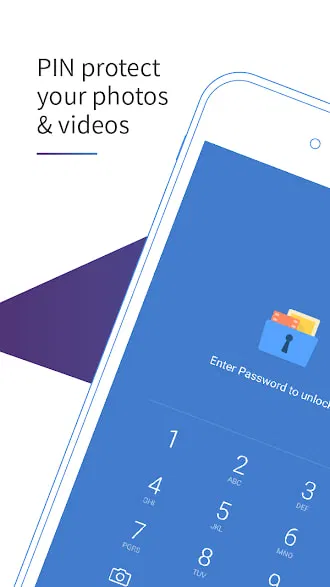
Despite the funny name, Gallery Vault offers one of the nicer app designs in this list. It’s also optimized for tablets and phones if you want to view your hidden images on a larger screen.
The built-in private browser makes it easy to bring photos from other sources into your vault. The app also supports GIFs — a somewhat rare find in most apps. While many will let you store them, most won’t show the animations when you view them.
Fake passwords and break-in alerts are also available to help you keep your files secure and know if anyone is snooping on your phone.
Wrapping up the list of features, the app supports SD card storage. This means you can easily remove the card if someone is snooping and you can keep your files safe without sacrificing precious space for your apps, games, and other media.
Price: Free with in-app purchases
Get it: for Android
Final Thoughts
Photo hiding apps are a great way to keep pictures you wouldn’t want others to see out of view. But they’re only one part of keeping your hidden photos safe.
Always use discretion when accessing your apps or hidden folders. After all, if someone gets suspicious that you have something to hide, it will probably pique their interest.
Don’t access your “hidden vault” in front of others and keep the app out of your recently launched apps. If your app supports it, you can even go the extra mile and enable a fake icon to further reduce attention.
Also, be sure to check any app documentation if you plan to factory reset your phone, restore an old backup, or upgrade to a new phone or tablet. Many apps use encryption to keep files safe and if something about your hardware changes, the app might not decrypt your stored files when you reinstall the app.
P.S. If you’re looking to hide or store more than pictures or video, you might be able to use your password manager. Many include file vaults to keep things safe and secure alongside your passwords. While this is often meant for things like credit card information, identification codes, or software keys, there’s no reason you can’t use your vault for photo storage as well in most cases.
Disclosure: You should know that in some cases, we may receive a referral fee (at no additional cost to you) for products purchased through the links on our site. These links help support our work but they do not influence our content. Our editorial recommendations are always genuine and we try to feature only the best products and services. Why trust us?



I've tested lots of hiders. IMHO, the best of the best is LOCKED from Privacy Geeks. It is much more convenient and stable. And Material Design 2.0 makes it much more beautiful)
Google Play: https://play.google.com/store/apps/details?id=com.lkd.calculator