
“Which iPad do I have?”
With so many versions available, that’s a question we see a lot…
Since the first release on April 3, 2010, the iPad line up has grown to include 23 releases — not counting carrier-specific variants or the various configurations of each model available.
So, how do you tell which iPad you have?
This guide will show you 3 simple ways to find out.
Editor’s Note: This post has been updated for 2022
Method #1: Check the Back of Your iPad
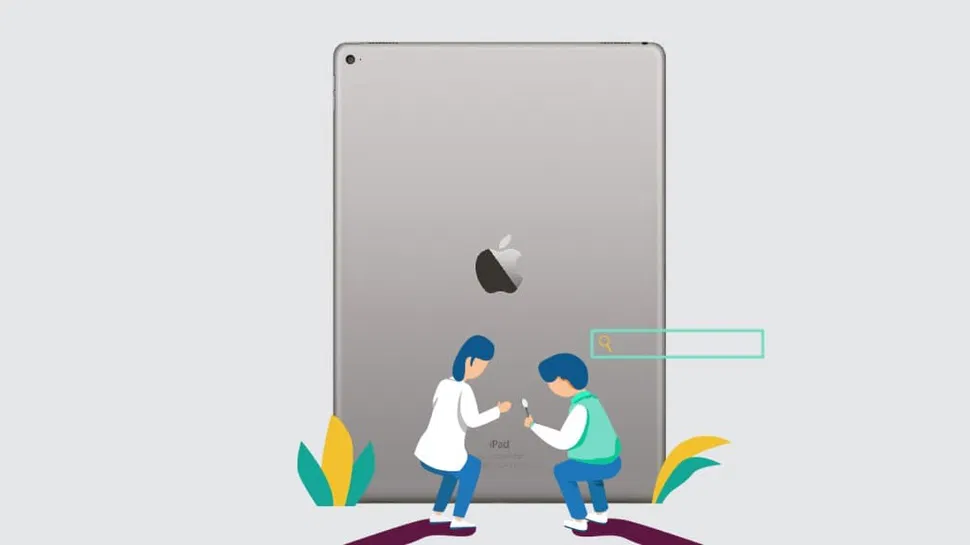
Apple prints the model number of every device they produce on the rear housing. So just flip it over and look near the center toward the bottom.
You should see lines that mention a model number as well as the IMEI and serial number of the iPad.
The model number should start with an A.
Unfortunately, it’s in tiny print at the very bottom. So unless you’ve kept your iPad in a case, it might have worn off.
If so, don’t worry. There are a few other options to check.
Method #2: Check Your iPad Settings
Checking the model number in your software is easy as well.
Just tap the Settings app and choose General then About.
You should see a listing on the page for Model.
The model number displayed by default likely starts with an M. While this model number is much more specific, it’s harder to cross-reference.
But if you tap the model number, it should switch to a model starting with A.
Method #3: Connect Your iPad to iTunes
If all else fails, you can hunt down your USB cable and connect your iPad to any computer running iTunes.
Once you boot up iTunes, you should see the iPad’s model number listed on the list of connected devices. If not, clicking your iPad in the iTunes menu should display the serial number.
You can use the serial number to find your model by using Apple’s Check Coverage page.
Simply fill in your serial number and the captcha at the bottom of the page and click continue.
The next page should show your iPad model in the center of the page.
A Reference List of iPad Models
Want to know which model number matches the “named” iPad models (iPad Air, iPad Pro, etc)?
Here are the model numbers of every iPad since release…
| Release Date | Model Name | Model Numbers |
| April 3, 2010 | iPad | A1219 (Wi-Fi) A1337 (Wi-Fi + 3G) |
| March 11, 2011 | iPad 2 | A1395 (Wi-Fi) A1396 (GSM) A1397 (CDMA) |
| March 16, 2012 | iPad (3rd Gen.) | A1416 (Wi-Fi) A1430 (GSM) A1403 (CDMA) |
| November 2, 2012 | iPad Mini | A1432 (Wi-Fi) A1454 (GSM) A1455 (CDMA) |
| November 12, 2012 | iPad (4th Gen.) | A1458 (Wi-Fi) A1459 (GSM) A1460 (CDMA) |
| November 1, 2013 | iPad Air | A1474 (Wi-Fi) A1475 (GSM) A1476 (TD-LTE) |
| November 12, 2013 | iPad Mini 2 | A1489 (Wi-Fi) A1490 (GSM) A1491 (TD-LTE) |
| October 22, 2014 | iPad Air 2 | A1566 (Wi-Fi) A1567 (Wi-Fi + Cellular) |
| October 22, 2014 | iPad Mini 3 | A1599 (Wi-Fi) A1600 (Wi-Fi + Cellular) |
| September 9, 2015 | iPad Mini 4 | A1538 (Wi-Fi) A1550 (Wi-Fi + Cellular) |
| November 11, 2015 | iPad Pro (1st Gen., 12.9-inch) | A1584 (Wi-Fi) A1652 (Wi-Fi + Cellular) |
| March 31, 2016 | iPad Pro (1st Gen., 9.7-inch) | A1673 (Wi-Fi) A1674/A1675 (Wi-Fi + Cellular) |
| March 24, 2017 | iPad (5th Gen.) | A1822 (Wi-Fi) A1823 (Wi-Fi + Cellular) |
| June 13, 2017 | iPad Pro (2nd Gen., 12.9-inch) | A1670 (Wi-Fi) A1671 (Wi-Fi + Cellular) A1821 (Wi-Fi + Cellular [China Only]) |
| June 13, 2017 | iPad Pro (2nd Gen., 10.5-inch) | A1701 (Wi-Fi) A1709 (Wi-Fi + Cellular) A1852 (Wi-Fi + Cellular [China Only]) |
| March 27, 2018 | iPad (6th Gen.) | A1893 (Wi-Fi) A1954 (Wi-Fi + Cellular) |
| October 30, 2018 | iPad Pro (3rd Gen.) | A1876 (Wi-Fi) A1895/A2014 (Wi-Fi + Cellular) A1983 (Wi-Fi + Cellular [China Only]) |
| March 18, 2019 | iPad Air (3rd Gen.) | A2152 (Wi-Fi) A2123, A2153 (Wi-Fi + Cellular) A2154 (Wi-Fi + Cellular [Chine Only]) |
| March 18, 2019 | iPad Mini (5th Gen.) | A2133 (Wi-Fi) A2124, A2126 (Wi-Fi + Cellular) A2125 (Wi-Fi + Cellular [China Only]) |
| Sept 25, 2019 | iPad 10.2 | A2197 (Wi-Fi) A2200, A2198 (Wi-Fi + Cellular) |
| March 25, 2020 | iPad Pro 11 (2020) | A2228 (Wi-Fi) A2068, A2230 (Wi-Fi + Cellular) A2231 (Wi-Fi + Cellular [China Only]) |
| March 25, 2020 | iPad Pro 12.9 (2020) | A2229 (Wi-Fi) A2069, A2232 (Wi-Fi + Cellular) A2233 (Wi-Fi + Celluar [China Only]) |
| Sept 18, 2020 | iPad 10.2 (2020) | A2270 (Wi-Fi) A2428, A2429, A2430 (Wi-Fi + Cellular) |
| October 31, 2020 | iPad Air (2020) or iPad Air (4th Gen.) | A2316 (Wi-Fi) A2324, A2323, A2702 (Wi-Fi + Cellular) |
| May 15, 2021 | iPad Pro 11-inch (2021) or iPad Pro 11-inch (3rd Gen.) | A2377 (Wi-Fi) A2459 (Wi-Fi + Cellular) A2301 (Wi-Fi + Cellular with mmWave) A2460 (Wi-Fi + Cellular [China Only]) |
| May 15, 2021 | iPad Pro 12.9-inch (2021) or iPad Pro 12.9-inch (5th Gen.) | A2378 (Wi-Fi) A2461 (Wi-Fi + Cellular) A2379 (Wi-Fi + Cellular with mmWave) A2462 (Wi-Fi + Cellular [China Only]) |
Summary
Apple offers three ways to find your iPad’s model number:
- On the back of the tablet
- In the Settings app
- Using iTunes
Knowing your model number can help you to match accessories to your tablet, compare it to other models if you’re upgrading, and find out more about the features included with your device.
It’s also useful to know if you’re wanting to sell your iPad or find parts you might need to repair a broken iPad.
For more information about each iPad model, check out Apple’s Identify your iPad model page.
Disclosure: You should know that in some cases, we may receive a referral fee (at no additional cost to you) for products purchased through the links on our site. These links help support our work but they do not influence our content. Our editorial recommendations are always genuine and we try to feature only the best products and services. Why trust us?


Hello, I'd like to advertise with you for sponsored post on the site, may we have further talk via email? Thank you